
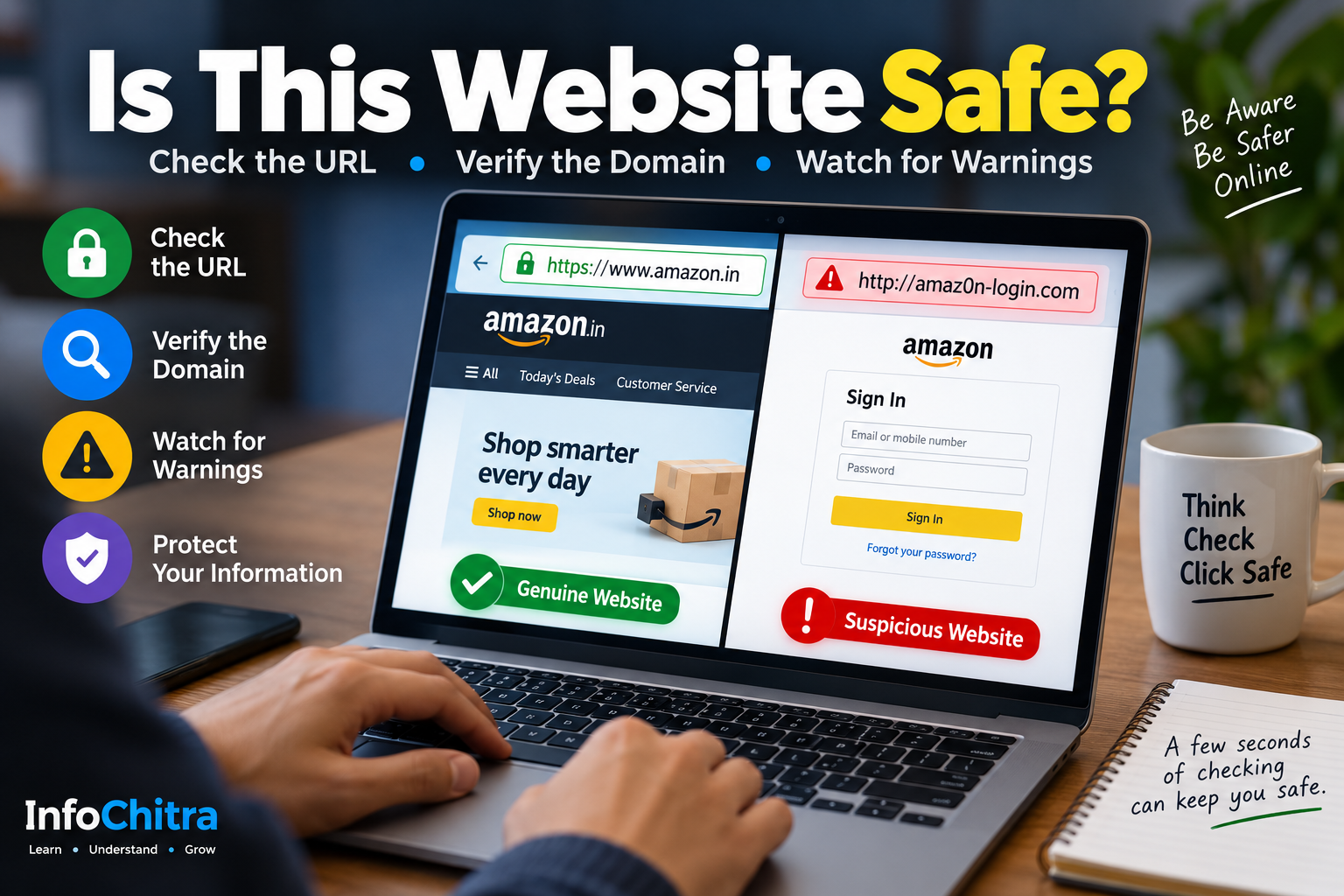
How to Check If a Website Is Safe Before You Enter Your Password
You click a link and a website opens.
It looks professional.
The logo looks familiar. The colours look right. There is even a login page asking for your email address and password.
But how do you know the website is actually genuine?
This is an important question because phishing websites can be designed to look like legitimate websites and trick people into entering passwords, payment information or other personal details. The FTC warns that scammers often impersonate companies people know and trust and use links to direct them to fraudulent pages.
The good news is that you can perform several checks before entering sensitive information.
Start With the Website Address

The first thing to check is the URL in the browser’s address bar.
Don’t judge a website only by how it looks.
Look carefully at the domain name.
For example, imagine you receive a message claiming to be from a company called Example Bank.
A genuine website might use:
examplebank.com
A suspicious website might use something like:
example-bank-login.com
or
examplebank-security.com
or a completely different domain that simply uses the company’s logo.
A convincing design doesn’t prove that a website belongs to the company it claims to represent.
Pay particular attention to:
- spelling
- extra words
- unusual characters
- unexpected subdomains
- unfamiliar domain extensions
- shortened links
- domains that look almost identical to a real company
A small difference in a domain name can be easy to miss on a phone screen.
HTTPS Is Important — But It Doesn’t Prove a Website Is Genuine

You may have learned to look for the padlock or https://.
That’s useful, but it is important to understand what HTTPS actually tells you.
HTTPS helps establish an encrypted connection between your browser and the website. Chrome explains that a secure connection means the information you send or receive is private between you and the site.
But HTTPS does not automatically mean that the website itself is trustworthy.
A fraudulent website can also use HTTPS.
So don’t think:
HTTPS = genuine website
Instead think:
HTTPS = secure connection, but I still need to verify the website.
Google specifically advises users to check the site name in the address bar even when the connection is secure.
Pay Attention to Browser Security Warnings

Your browser can sometimes identify dangerous websites before you interact with them.
Chrome’s Safe Browsing system helps protect users against phishing, malware, malicious downloads and other dangerous content.
If Chrome shows a full-page warning saying that a site is dangerous, don’t ignore it just because the website looks familiar.
Chrome explains that a “Dangerous” warning means the site has been flagged by Safe Browsing and advises users not to use it.
A simple rule:
Red security warning → Stop.
Don’t enter:
- passwords
- OTPs
- card information
- bank details
- personal identification information
Don’t Trust a Website Just Because It Looks Professional
This is one of the most important lessons.
A phishing website doesn’t necessarily look badly designed.
It may contain:
- company logos
- professional images
- menus
- login forms
- customer-support information
- familiar colours
- fake security badges
The FTC warns that phishing messages can impersonate companies people know and trust.
So visual appearance is only one part of the check.
A professional-looking website can still be fraudulent.
If You Arrived Through an Email or Message, Be Extra Careful

Suppose you receive this message:
“Your account has been suspended. Click here to verify your details.”
There is a link.
You click it.
A login page appears.
It looks exactly like the company’s website.
Should you enter your password?
Not yet.
Unexpected messages that create urgency are a common phishing technique. Scammers may claim there is a problem with your account, payment or subscription and pressure you to click a link.
Instead, open a new browser tab and visit the company’s website using an address you already know or find independently.
Don’t rely on the link in the message.
The FTC recommends contacting a company through a phone number, email address or website that you know is genuine rather than using contact information supplied in a suspicious message.
Check the Domain Before the Login Page

Sometimes the login page itself looks perfect.
That’s why you should check the domain before entering your credentials.
For example, if you expect to log in to a service called:
example.com
but the browser shows:
example-login.example-security.com
don’t assume it’s the same company.
Read the domain carefully from right to left.
The important registered domain is generally the part immediately before the final domain extension.
For example:
login.example.com
belongs to the example.com domain.
But:
example.com.some-other-site.com
belongs to some-other-site.com, not example.com.
This simple check can help you spot some deceptive URLs.
Don’t Assume Google Search’s First Result Is Automatically Safe

Search engines are useful, but don’t use ranking position as your only security check.
If you search for a bank, shopping website or government service, look at the domain before clicking and verify that it is the official website.
For sensitive accounts, an even safer habit is to use:
- a bookmark you created previously
- the official mobile app
- the official website address you already know
- a trusted password manager’s saved login
The goal is to avoid being redirected from a suspicious message to a fake login page.
Be Careful With Password Requests
A legitimate website may obviously need your password when you’re logging in.
But you should be suspicious when an unexpected message asks you to enter or confirm your password.
Google advises users not to share passwords in response to suspicious emails, messages, webpages or phone calls.
Never enter your password simply because a message says:
- “Your account will be closed.”
- “Your payment failed.”
- “Verify your identity immediately.”
- “Your account has been locked.”
- “Claim your refund.”
- “Confirm your bank details.”
- “Your subscription has expired.”
Instead, independently open the official service and check your account.
What About Payment Websites?

Be even more careful when a website asks for financial information.
Before making a payment, check:
- the domain name
- the connection security
- whether you intentionally opened the website
- whether the payment request makes sense
- the final amount
- whether the website is the official service you intended to use
If you arrived through an unexpected SMS, email or social-media message, don’t use the supplied payment link without independently verifying it.
The FTC specifically warns that phishing messages can direct people to fake payment pages designed to obtain financial information.
Don’t Download Files From a Suspicious Website
A suspicious website may not immediately ask for a password.
It might instead ask you to download:
- an app
- a browser extension
- a PDF
- a “security tool”
- a software update
- a ZIP file
Be careful.
Chrome can block downloads that it identifies as dangerous, suspicious or unverified. Google explains that dangerous downloads may contain malware or deceptive software.
If a website unexpectedly tells you:
“Download this file to continue.”
stop and verify the website first.
Check the Website’s Context
Ask yourself a simple question:
“Why am I on this website?”
If you intentionally searched for a product, service or account, the situation is different from receiving an unexpected message containing a login link.
For example:
Expected:
You open your bank’s official website because you want to check your account.
Unexpected:
You receive an SMS saying your bank account will be blocked and asking you to click a link immediately.
The second situation requires much more caution.
What If the Website Says Your Account Has a Problem?
Don’t let urgency make the decision for you.
Scammers often use fear and time pressure:
“Act now.”
“Your account will be closed today.”
“Your payment has failed.”
“Verify within 30 minutes.”
The FTC identifies this type of unexpected account or payment message as a common phishing tactic.
Instead:
- Close the suspicious page.
- Open a new browser tab.
- Go to the company’s known official website.
- Log in normally.
- Check whether there is actually a problem.
If there is a genuine issue, the official account should normally provide relevant information.
What If You Already Entered Your Password?

Don’t panic, but act quickly.
If you entered your password into a website that you now suspect was fraudulent:
Change the password
Go directly to the genuine website or app and change the password.
Don’t reuse the same password elsewhere
If you used the same password on another account, change it there too.
Google recommends using strong, unique passwords for different accounts because a compromised password can otherwise be used to access other services.
Turn on two-factor authentication
Multi-factor authentication adds another layer of protection. The FTC recommends using it where available because it can make it harder for scammers to access an account even if they obtain a password.
Check your account
Look for:
- unfamiliar login activity
- changed recovery information
- unexpected transactions
- unfamiliar devices
- messages you didn’t send
If financial information was entered, contact the relevant bank or card provider using an official contact method.
A Simple Website Safety Check
Before entering a password or payment information, pause for a few seconds and ask:
Is this the website I intended to visit?
Does the domain name look correct?
Does the browser show any security warning?
Did I arrive here through an unexpected message?
Is the website asking for information unexpectedly?
Can I open the official website independently instead?
You don’t need a complicated technical investigation every time.
The goal is to develop a habit of verifying before trusting.
What HTTPS Can and Cannot Tell You
| What you see | What it means |
|---|---|
| HTTPS connection | The connection is encrypted/private |
| Correct official domain | Helps confirm you’re on the intended website |
| Browser security warning | A reason to stop and investigate |
| Professional design | Does not prove legitimacy |
| Padlock/secure connection | Does not prove the business is genuine |
| Unexpected password request | Treat with caution |
| Unexpected payment request | Verify independently |
Chrome specifically notes that even secure connections require users to check that they are on the correct website before sharing sensitive information.
A Safer Habit for Everyday Browsing
You don’t need to become a cybersecurity expert.
Develop these simple habits:
Don’t trust a link just because it arrived from a familiar-looking sender.
Read the domain before entering sensitive information.
Don’t ignore browser security warnings.
Don’t assume HTTPS means the website is genuine.
For important accounts, open the official website or app yourself.
Use unique passwords and two-factor authentication where available.
These habits can reduce the chances of handing your information to a phishing website.
Frequently Asked Questions
Is HTTPS enough to know that a website is safe?
No. HTTPS helps protect the connection between your browser and the website, but it does not prove that the website itself is legitimate. You should also verify the domain and look for browser warnings.
Can a fake website have HTTPS?
Yes. HTTPS protects the connection; it does not guarantee that the organisation behind the website is trustworthy.
How can I tell if a website is phishing?
Check the domain carefully, consider how you reached the website, watch for unexpected requests for passwords or payment information, and pay attention to browser security warnings. Phishing websites can imitate legitimate businesses very closely.
Should I enter my password after clicking a link in an SMS?
If the message was unexpected, it is safer to avoid the link. Open the company’s official website or app independently and check your account there.
What should I do if I entered my password on a fake website?
Go directly to the genuine service, change the compromised password, change it anywhere else you reused it, and enable two-factor authentication where available. Also check the account for suspicious activity.
Is a website dangerous if Chrome shows a red warning?
Treat a full-page dangerous-site warning seriously. Chrome says such sites have been flagged by Safe Browsing and recommends not using them.
🔗 Continue Reading
You already have a closely related InfoChitra article:
I Clicked a Suspicious Link — What Should I Do Now?
Use this as the primary internal link because it answers the natural next question after this article.
Also link contextually to:
Cyber Security: 10 Essential Ways to Protect Yourself Online
How to Fact-Check Anything Online: A Step-by-Step Guide
Final Takeaway
A website can look completely professional and still be the wrong place to enter your password.
The safest approach is not to rely on one signal such as the padlock, HTTPS or website design.
Instead, verify the website before you trust it.
Check the domain.
Pay attention to browser warnings.
Be cautious with links from unexpected messages.
Don’t allow urgency to push you into entering sensitive information.
And when you’re unsure, close the page and open the official website yourself.
A few seconds of verification can be much safer than trying to recover a compromised account later.