
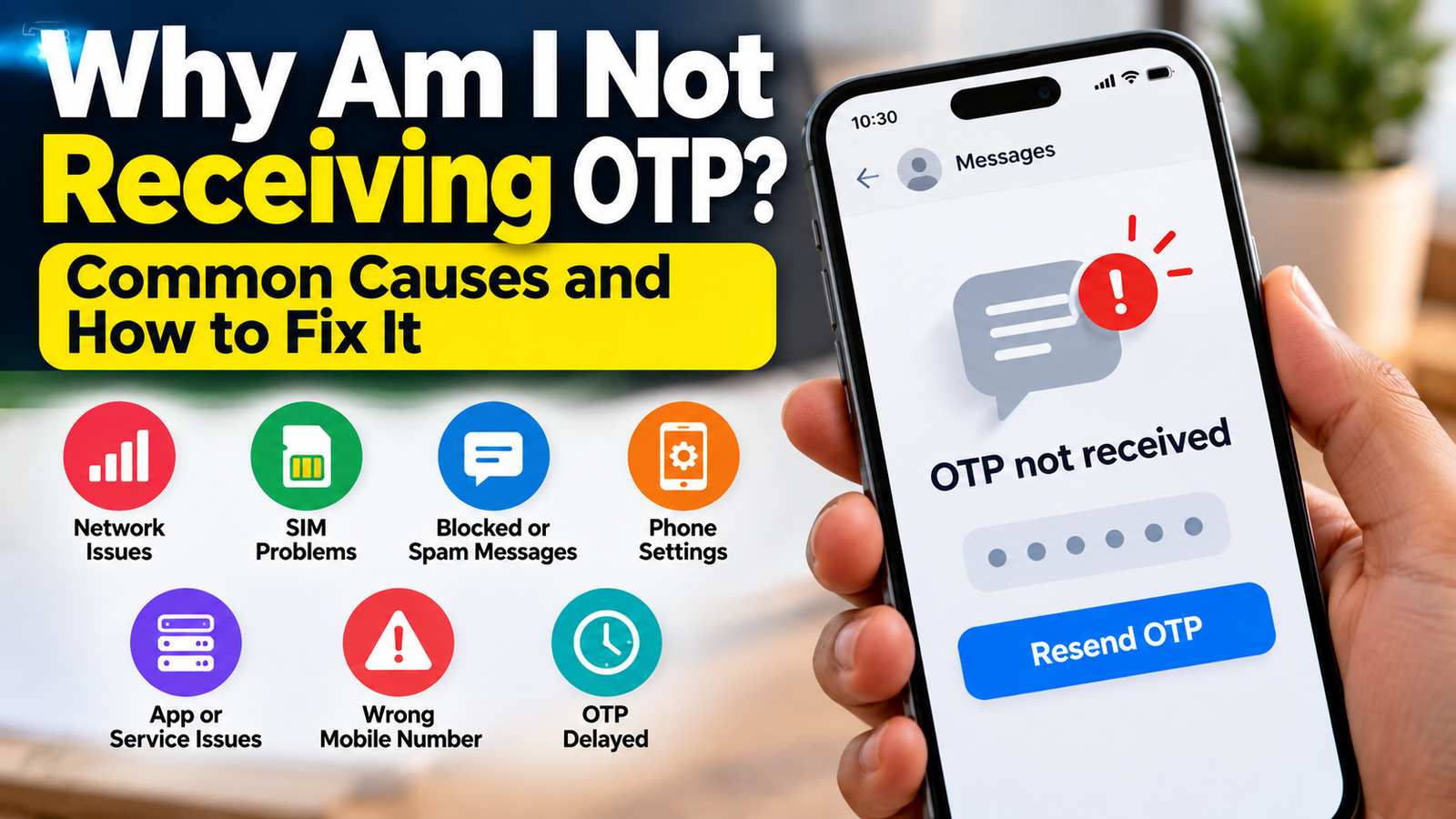
Why Am I Not Receiving OTP on My Phone? Common Causes and How to Fix It
You are trying to log in to your bank account, make a UPI payment, verify your email address, or access an online service. The website says it has sent an OTP, but nothing arrives on your phone.
You tap Resend OTP, wait a few more seconds, and still receive nothing. Sometimes the message arrives after it has expired. In other cases, regular text messages work perfectly, but OTP messages never appear.
If you are facing this problem, you are not alone. OTP messages can be delayed or fail to arrive for several reasons, including mobile network problems, SMS delivery issues, incorrect phone numbers, blocked messages, or problems with the service sending the code.
The good news is that you can check several things yourself before contacting your mobile operator or the service provider.
In this guide, you will learn why you may not be receiving OTP messages, how to troubleshoot the problem step by step, and what to do if the OTP still does not arrive.
Why Am I Not Receiving OTP on My Phone?

An OTP, or One-Time Password, is a temporary verification code used to confirm your identity when signing in, making payments, or accessing online services.
When you request an OTP, the service generates a code and sends it to your registered mobile number, usually through SMS. The message must pass through the service provider and mobile network before it reaches your phone.
If something goes wrong during this process, the OTP may be delayed or not delivered.
Common reasons include:
- Weak or unavailable mobile network signal
- Temporary SMS delivery problems
- Incorrect or outdated registered mobile number
- SIM card or mobile operator issues
- Messages filtered into spam or blocked folders
- Too many OTP requests in a short time
- Temporary problems with the app or website
- Restrictions or security checks imposed by the service
The important first step is to find out whether the problem affects all SMS messages or only OTP messages from a particular service.
1. Check Your Mobile Network Signal

A weak mobile signal can interfere with SMS delivery. If your phone has no signal or is experiencing network problems, OTP messages may not arrive immediately.
Try these steps:
- Check the signal indicator on your phone.
- Move to a location where mobile reception is better.
- Turn Airplane Mode on for a few seconds and then turn it off.
- Wait for your phone to reconnect to the mobile network.
- Request a new OTP once the signal is stable.
You can also try making a normal phone call. If calls are failing as well, the issue may be related to your mobile network or SIM connection.
If you are in an area with poor reception, try again from a different location.
2. Check Whether You Can Receive Normal SMS Messages

Before changing phone settings, check whether your phone can receive ordinary text messages.
Ask someone you know to send you a regular SMS.
There are two possible situations:
If normal SMS messages are also not arriving:
The issue may involve your SIM card, mobile network, messaging app, or SMS service. Check your network connection and contact your operator if the problem continues.
If normal SMS messages arrive but OTP messages do not:
The issue may be specific to the service sending the OTP, message filtering, or SMS delivery restrictions.
This simple test can help you narrow down the problem without changing unnecessary settings.
3. Check Whether You Entered the Correct Mobile Number

An OTP can be sent to the wrong number if the registered mobile number is incorrect or outdated.
When requesting an OTP, carefully check the mobile number displayed on the screen.
For example, if a banking app shows only the last four digits of your registered number, make sure they match your current phone number.
If you recently changed your mobile number, the service may still have your old number registered.
In that situation, you may need to update your number through the service’s official process.
Never share your OTP with anyone who contacts you claiming to help update your mobile number.
4. Check Your Spam and Blocked Messages

Sometimes an OTP message reaches your phone but is filtered into a spam or blocked folder.
On Android phones using Google Messages:
- Open the Messages app.
- Tap your profile picture or account menu.
- Select Spam & blocked.
- Check whether the missing OTP is listed there.
- If you find a legitimate message, follow the app’s instructions to mark it as not spam.
Also check whether you have accidentally blocked messages from a particular sender.
The exact menu names may differ depending on your phone and messaging app.
5. Restart Your Phone

Restarting your phone can sometimes resolve temporary network or messaging-app problems.
Save any work in progress and restart your device. Once it turns on, wait until the mobile network reconnects.
Then request a new OTP.
A restart will not fix every SMS delivery problem, but it is a simple troubleshooting step worth trying before changing more advanced settings.
6. Check Your SIM Card and Mobile Network

If you are not receiving any SMS messages, check whether your SIM card is working correctly.
- Make sure your SIM is active and properly inserted, if your phone uses a physical SIM.
- If you use dual SIMs, confirm which number is registered with the service.
- Check whether your mobile connection is working.
- If possible, test your SIM in another compatible phone.
If your SIM does not receive SMS messages in another phone either, contact your mobile operator. The problem may be with the SIM or network service.
Google also recommends checking the SIM, mobile signal, default messaging app, and operator support when troubleshooting SMS problems on Android.
7. Check Whether Your Phone’s Messaging App Is Working
Your messaging app may be causing the problem, particularly if you recently installed another SMS app or changed your default messaging app.
On Android:
- Open your phone’s Settings.
- Go to Apps.
- Find the default apps section.
- Check which app is selected for SMS.
- Open that messaging app and check whether it can receive messages.
The exact steps vary by Android version and manufacturer.
If you recently switched messaging apps, check whether the new app is properly configured. Also check for updates to the app.
Avoid deleting message data or resetting the phone as an initial troubleshooting step.
8. Stop Requesting OTPs Repeatedly

When an OTP does not arrive, it is tempting to press the Resend button again and again.
However, repeated requests can create confusion. You may receive several codes, and an older code may no longer work after a newer one is generated.
Some services also limit how frequently you can request OTPs.
Instead:
- Request an OTP once.
- Wait for the time shown on the screen.
- Check your SMS inbox and spam folder.
- If the code does not arrive, use the resend option when it becomes available.
- Enter the most recently received valid OTP.
If the service displays a temporary limit or asks you to try again later, follow that instruction rather than repeatedly requesting codes.
9. Check Whether the Problem Is With One Particular App or Website
If you receive OTP messages from other services but not from one particular app or website, the problem may not be with your phone.
For example:
- Your bank OTP arrives, but an online shopping OTP does not.
- You receive email verification codes, but not an OTP from a government portal.
- OTPs from one app arrive immediately, while another service’s codes are delayed.
In these situations, the service itself may be experiencing a temporary issue, or it may have a problem sending messages to your number.
Check the service’s official website or app for any notices. If the issue continues, contact its official customer support.
For banking or payment services, use the contact details published on the bank’s official website or app.
10. What to Do If You Recently Changed Your SIM
If you recently replaced your SIM card, switched operators, or moved your number to a new SIM, check whether the SIM is fully active and able to receive SMS messages.
Test it by receiving an ordinary SMS first.
If regular messages work but a particular OTP does not arrive, contact the relevant service to check whether any additional verification or waiting period applies.
For Aadhaar-related services, OTPs are sent to the mobile number registered with Aadhaar. If the number is outdated, you may need to update it through an authorised UIDAI process.
Do not assume that changing the SIM automatically updates your registered mobile number with banks, government services, or other websites.
11. Check Whether Your Phone Has Enough Storage

Some messaging apps may have difficulty functioning when your phone is running extremely low on storage.
If your phone displays a storage warning or your messaging app is not working normally:
- Check your available storage.
- Remove unnecessary downloads or unused apps.
- Restart the messaging app.
- Check whether the app needs an update.
You do not need to delete important SMS messages or personal photos just because an OTP is delayed. First check whether storage is actually causing a problem.
12. Try Another Verification Method
Some services offer alternatives when SMS OTP delivery fails.
Depending on the service, you may see options such as:
- Resend OTP
- Verify through email
- Receive a voice call
- Use an authenticator app
- Use an alternative approved verification method
Only use options displayed within the official app or website.
For example, if a service offers a voice-call OTP, you can try that instead of waiting for an SMS. Not every service supports alternative verification methods.
Never use an unofficial website or an unknown person offering to receive an OTP on your behalf.
What If You Still Do Not Receive the OTP?
If you have checked your network, SIM, SMS inbox, and phone settings but the OTP still does not arrive, identify who needs to resolve the issue.
| Situation | What to do |
|---|---|
| No SMS messages arrive | Contact your mobile operator |
| Normal SMS works, but one service’s OTP does not | Contact that service |
| OTP arrives late or expires | Request a new code after the permitted waiting period |
| OTP is sent to an old number | Follow the service’s official number-update process |
| Messages appear in spam | Check the spam or blocked folder |
| Phone displays a SIM or network error | Contact your mobile operator |
| Aadhaar OTP does not arrive | Check the registered mobile number and UIDAI’s official guidance |
For Aadhaar SMS services, UIDAI advises checking whether SMS service is working and contacting the telecom provider if there are problems such as poor network reception or an inactive SMS service.
Common Mistakes to Avoid When OTP Is Not Arriving
When an OTP is delayed, avoid these mistakes:
- Do not share your OTP: Banks and legitimate service providers should not ask you to reveal your OTP over a phone call or message.
- Do not repeatedly request codes: Follow the resend timer and any request limits shown on the screen.
- Do not install unknown apps: Avoid apps or websites claiming they can recover missing OTPs.
- Do not share your screen with strangers: Someone may be able to see your OTP or access sensitive information.
- Do not use unofficial customer support numbers: Find contact details through the official website or app.
If you suspect that someone has obtained your OTP, secure the relevant account immediately and contact the service provider through its official channels.
Frequently Asked Questions
Why am I not receiving OTP even though my network is working?
A working network does not guarantee that every SMS will arrive. The message may be delayed, filtered as spam, or affected by a problem at the service provider. Check whether ordinary SMS messages arrive and whether the problem affects only one service.
Why am I receiving normal SMS but not OTP messages?
OTP messages may be sent through different messaging routes and systems. If normal SMS works but OTPs from one service do not, the problem may be with that service or its SMS delivery provider.
Why is my OTP arriving late?
OTP delivery can be delayed by network congestion, temporary SMS delivery issues, or problems at the service sending the code. If the OTP has expired, request a new one using the official app or website.
Why am I not receiving bank OTP messages?
Check your registered mobile number, network connection, and SMS inbox. If other SMS messages arrive but your bank’s OTP does not, contact your bank using its official customer support channel.
Can I receive OTP without a SIM card?
Most SMS-based OTPs require access to the registered mobile number. Some services provide alternative verification methods, such as email, an authenticator app, or a voice call. Availability depends on the service.
Does restarting my phone fix OTP problems?
Restarting may resolve temporary network or messaging-app issues. However, it will not fix problems caused by an incorrect registered number or a service provider’s SMS delivery failure.
Final Thoughts
Not receiving an OTP can be frustrating, especially when you need to complete an urgent payment or sign in to an important account. However, the problem does not always mean that your phone or SIM is faulty.
Start by checking your network and testing whether ordinary SMS messages arrive. Then check your spam folder, registered mobile number, messaging app, and the service sending the OTP.
If the issue affects only one service, contact that service. If you cannot receive ordinary SMS messages either, contact your mobile operator.
By identifying where the problem occurs, you can avoid unnecessary phone resets and get back to using your account safely.
Related articles on InfoChitra:
- Phone Won’t Connect to Wi-Fi? Here’s How to Fix It
- I Clicked a Suspicious Link — What Should I Do Now?
- UPI Payment Failed? Here’s Why It Happens and How to Fix It