
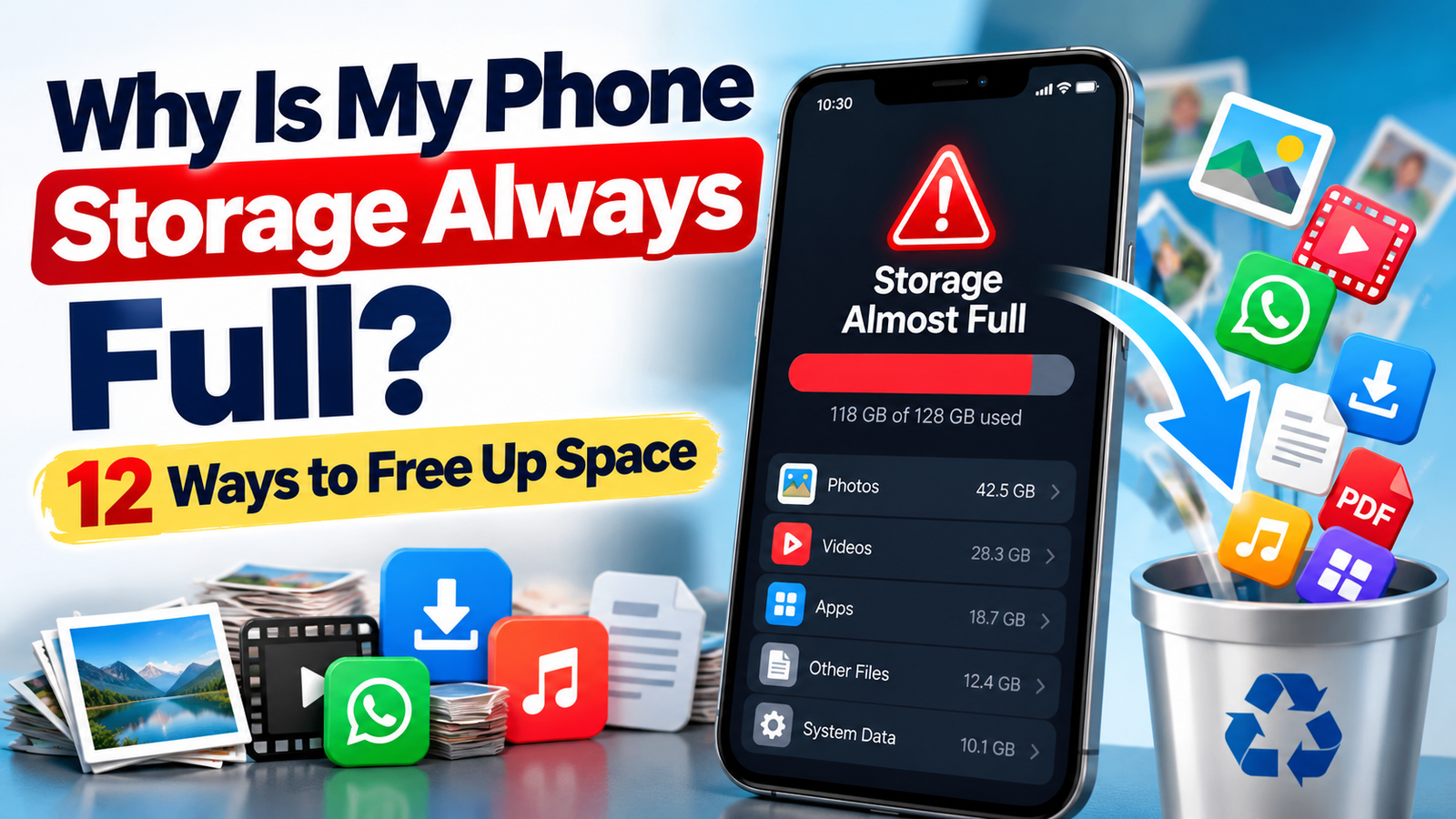
Why Is My Phone Storage Always Full? 12 Ways to Free Up Space
Have you ever seen the “Storage Almost Full” warning on your phone even though you regularly delete photos and apps?
You are not alone. Modern phones can fill up quickly because of photos, videos, downloaded files, messaging apps, offline content, app data, and system files.
The good news is that you usually don’t need to delete everything. The first step is to find out what is actually using your storage, and then remove unnecessary files safely.
This guide explains 12 practical ways to free up phone storage on both Android and iPhone.
1. Why Is My Phone Storage Always Full?

Your phone storage can fill up because of several things:
- Photos and videos
- Large apps and games
- WhatsApp or other messaging media
- Downloaded movies and music
- PDFs and other downloaded files
- Screenshots
- Duplicate files
- App cache and temporary files
- Offline content
- Old files that you forgot about
- System data and other operating-system files
Deleting a few small files may not make much difference. Instead, start by checking which category is consuming the most space.
2. Check What Is Using Your Storage First

Before deleting anything, check your storage breakdown.
On Android
Open:
Settings → Storage
You can then see categories such as apps, photos, videos and other files. Google recommends using the Storage section to identify what is consuming space.
On iPhone
Go to:
Settings → General → iPhone Storage
The iPhone Storage screen shows how much space different apps and content are using and may also provide storage recommendations.
Important: Don’t start deleting random files before checking this screen. It helps you identify the biggest storage problem first.
3. Delete Large Videos and Old Downloads
Videos can consume much more storage than ordinary photos.
Check your:
- Camera videos
- Screen recordings
- Downloaded movies
- Downloaded YouTube content
- Old WhatsApp videos
- Telegram videos
- Large files
Delete anything you no longer need.
If a file is important, back it up first before deleting it from your phone.
On Android, Google also recommends deleting downloaded files and unwanted media to free up storage.
4. Remove Apps You Don’t Use

Many people have dozens of apps installed but use only a small number regularly.
Go through your apps and ask:
“Have I used this app in the last few months?”
If the answer is no, consider uninstalling it.
Large games and video-editing applications can occupy several gigabytes.
On Android, unused apps can also be archived automatically on supported devices, while keeping personal app data available for when you reinstall the app.
5. Clear App Cache on Android
Some Android apps accumulate temporary cached files.
You can usually find the option through:
Settings → Apps → Select App → Storage → Clear Cache
Clearing cache removes temporary data. It is different from Clear Storage/Data, which can remove the app’s stored data and may require you to set the app up again.
Google specifically warns that clearing app storage/data is more significant than clearing cache.
Tip: Don’t clear app data unless you understand what will be removed.
6. Check WhatsApp and Other Messaging Apps

Messaging apps can quietly become major storage users.
Your conversations may contain:
- Photos
- Videos
- GIFs
- Documents
- Voice messages
- Forwarded media
Open your messaging app’s storage-management section and identify large files.
Instead of deleting entire conversations, look for large media files that you no longer need.
This can sometimes recover a significant amount of space without affecting important messages.
7. Remove Offline YouTube, Music and Streaming Downloads
Offline downloads are easy to forget.
Check apps such as:
- YouTube
- YouTube Music
- Netflix
- Spotify
- Other streaming apps
If you downloaded something for a trip or temporary use and no longer need it, remove the offline copy.
Google’s Android storage guidance specifically recommends removing downloaded movies, music and other media that are no longer required.
8. Delete Duplicate Photos and Screenshots

Your gallery may contain:
- Duplicate photos
- Multiple versions of the same image
- Old screenshots
- Failed screenshots
- Downloaded images
- Blurry photos
- Images received through messaging apps
Review these before deleting important photographs.
On Android, Files by Google can help identify duplicate files, screenshots, unused apps and other recommended files that may be removed to free space.
9. Empty Recently Deleted or Trash
Deleting a photo doesn’t always mean it immediately disappears from your phone.
Many photo and file apps temporarily keep deleted items in a Trash or Recently Deleted folder.
If you are certain you don’t need those files, empty the folder.
But be careful:
Once permanently deleted, recovery may not be possible.
So check the contents before emptying it.
10. Use Cloud Backup Carefully

Cloud backup can help you keep important photos and videos while reducing the amount stored locally on your phone.
For example, Android users can back up photos and videos using Google Photos and then remove backed-up copies from the device when appropriate. Google documents this as one way to free up Android storage.
However, don’t assume that every photo is safely backed up.
Before deleting local copies:
- Confirm the backup has completed.
- Open a few photos from the cloud service.
- Make sure important videos are also backed up.
- Only then remove local copies.
Backup first, delete second.
11. Free Up Storage on iPhone
If you use an iPhone, go to:
Settings → General → iPhone Storage
You’ll see the apps and content using storage.
iPhone can provide recommendations for reducing storage, and you can choose between Offload App and Delete App for supported apps.
Offload App
This removes the app itself while keeping its documents and data so that you can reinstall it later.
Delete App
This removes the app and its related data.
This makes Offload App useful when you want to reduce storage usage without immediately losing the app’s stored information.
12. Free Up Storage on Android
Android phones vary slightly depending on the manufacturer, but the basic approach is:
Settings → Storage
Then look for the largest categories.
You can consider:
- Deleting unnecessary downloads
- Removing unused apps
- Clearing app cache
- Deleting large videos
- Removing duplicate files
- Removing old screenshots
- Deleting offline media
- Moving important files to a computer or cloud storage
Google also provides a Free up space option on supported Android devices.
What About “System Data” or “Other” Storage?
Sometimes you may notice that System, Other, or similar categories are taking up a surprising amount of space.
Don’t immediately try to delete system files.
Some of these categories contain operating-system files, temporary data, caches, logs and other information required by the device.
On iPhone, Apple explains that categories such as Other and System can include system assets, caches, logs and other operating-system data.
Your phone manages some of these files automatically.
How to Stop Your Storage Filling Up Again
Freeing storage once is useful, but preventing the problem from returning is even better.
Try these habits:
1. Review your downloads regularly
Delete files you no longer need.
2. Clean your screenshots
Screenshots can accumulate surprisingly quickly.
3. Remove unused apps
Don’t keep apps installed just because you might use them someday.
4. Control messaging media
Review large videos and photos regularly.
5. Avoid keeping unnecessary offline downloads
Downloaded movies, music and videos can consume large amounts of storage.
6. Back up important photos
Use a reliable backup system before deleting local copies.
7. Check storage once a month
A quick monthly check can prevent your phone from suddenly reaching 99% capacity.
How Much Free Storage Should You Keep?
There isn’t one universal number that works for every phone.
However, keeping some free space is important for normal operation. Google notes that Android devices can begin experiencing issues when less than 10% of storage is free. Google Help
Apple recommends maintaining at least 1 GB of free space to help avoid slowdowns on iPhone and iPad. Apple Support
So don’t wait until your phone reaches 100% full before cleaning it.
Final Takeaway
If your phone storage is always full, don’t start deleting important files randomly.
First check:
Settings → Storage
Then identify the biggest storage categories.
In most cases, you can recover useful space by removing large videos, unused apps, old downloads, duplicate photos, screenshots, messaging media and offline content.
And remember:
Back up important files before deleting them.
A few minutes of regular storage management can prevent the frustrating “Storage Almost Full” warning from appearing again.
Frequently Asked Questions
Why does my phone storage fill up so quickly?
Photos, videos, apps, messaging media, downloads, cached files and offline content can gradually consume storage.
What should I delete first when my phone storage is full?
Start by checking the storage breakdown. Then target large videos, unused apps, downloads and other files you no longer need.
Does clearing cache delete my photos?
Normally, clearing an app’s cache removes temporary app data, not your personal photos. However, storage/data options can behave differently, so check carefully before confirming.
Is it safe to delete system files?
You should not manually delete unknown system files just to create space. Use the storage-management options provided by your phone.
Should I delete photos after backing them up?
You can, but first confirm that the photos and videos are actually backed up and accessible from your cloud service or another backup location.
Useful Official Guides
Related Post
Why Is My Phone Battery Draining So Fast?
How to Know If Your Phone Has Been Hacked?
Why Is My Phone Charging So Slowly?
🔐 Is Your Phone Really Secure?
Your phone storage is not the only thing you should keep an eye on. Unknown apps, unusual battery drain, suspicious messages, or unexpected account activity can also be warning signs.
InfoChitra.com — Simple Technology & Digital Safety Guides