
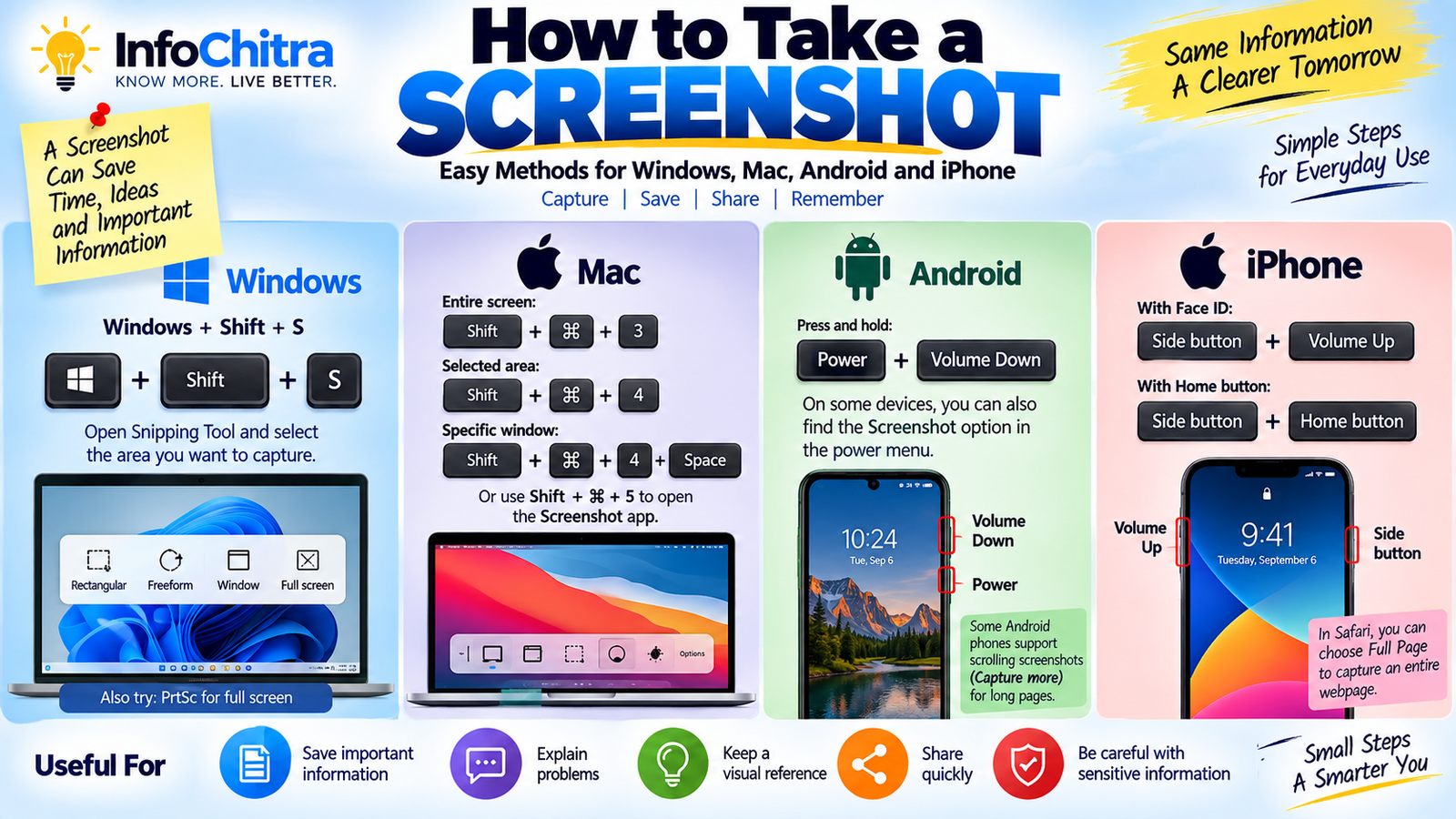
How to Take a Screenshot: Easy Methods for Windows, Mac, Android and iPhone
A screenshot is one of the simplest ways to save exactly what is displayed on your screen.
You might want to capture an important message, save an online receipt, show someone a problem on your computer, keep a reference for later, or share something interesting with a friend.
Fortunately, you usually don’t need any additional software. Windows, Mac, Android and iPhone all include built-in screenshot tools.
In this guide, you’ll learn how to take a screenshot on the most common computers and smartphones.
When sharing screenshots online, remember to protect sensitive information and follow basic cyber security practices.
1. How to Take a Screenshot on Windows
Windows provides several ways to capture your screen. One of the most useful is the built-in Snipping Tool. Microsoft says it can capture a rectangular area, freeform selection, individual window or the entire screen.
The quickest method
Press:
Windows + Shift + S
Your screen will dim and the Snipping Tool capture interface will appear.
You can then choose what you want to capture.
Available capture options
- Rectangular snip
- Freeform snip
- Window snip
- Full-screen snip
For example, if you only want to capture a section of a webpage, choose the rectangular option and drag around the area you need.
The captured image is copied to the clipboard, and you can open the Snipping Tool notification to edit or save it.
2. How to Take a Full-Screen Screenshot on Windows
If you want to capture the entire screen, Windows provides another simple option.
Press:
PrtSc (Print Screen)
Microsoft says this captures a static image of the entire screen and places it on the clipboard.
You can then paste the screenshot into an application such as:
- Paint
- Word
- PowerPoint
- Messaging apps
You can also use the Snipping Tool when you want more control over the captured area.
3. How to Save and Edit a Windows Screenshot
After taking a screenshot with Snipping Tool, you can:
- Crop it
- Add annotations
- Copy it
- Save it
- Share it
Microsoft’s Snipping Tool also supports different capture modes and a delay option, which can be useful when you need to capture a menu or another element that disappears when you click elsewhere.
For most everyday screenshots, Windows + Shift + S is probably the easiest shortcut to remember.
4. How to Take a Screenshot on Mac
Mac computers have built-in screenshot shortcuts.
Capture the entire screen
Press:
Shift + Command + 3
The Mac captures the entire screen. By default, the screenshot is saved to the desktop.
Capture part of the screen
Press:
Shift + Command + 4
The pointer changes into a crosshair.
Click and drag over the area you want to capture, then release the mouse or trackpad button.
Capture a specific window
Press:
Shift + Command + 4
Then press:
Spacebar
The pointer changes to a camera icon. Click the window you want to capture.
5. Use the Screenshot Tool on Mac
Mac also has a dedicated Screenshot app.
Press:
Shift + Command + 5
This opens the screenshot controls.
Depending on your Mac and macOS version, you can use it to:
- Capture the entire screen
- Capture a window
- Capture a selected portion
- Record the screen
- Set a timer
- Choose where screenshots are saved
Apple says the Screenshot app is available on macOS Mojave 10.14 and later.
6. How to Take a Screenshot on Android
Most Android phones use a simple button combination.
First, open the screen you want to capture.
Then press:
Power + Volume Down
at the same time.
Google’s Android Help documentation lists this as the standard method, although the exact behavior can vary between manufacturers.
If that combination doesn’t work on your phone, Google recommends pressing and holding the Power button and looking for the Screenshot option.
Because Android phones are made by many different manufacturers, menus and additional screenshot features can vary.
7. How to Take a Scrolling Screenshot on Android
Some Android devices support scrolling screenshots.
This is useful when you want to capture something longer than the visible screen, such as:
- A long webpage
- A lengthy conversation
- A settings page
- A long document
On supported Android 12 or later devices, Google says you can take a screenshot and then select Capture more to include additional content.
The feature isn’t available on every screen or every Android device, so the exact options may differ.
8. How to Take a Screenshot on iPhone
The method depends on the type of iPhone.
iPhone with Face ID
Press these two buttons together:
Side button + Volume Up
Quickly release both buttons.
iPhone with a Home button
If your iPhone has Touch ID and a Home button, press:
Side button + Home button
at the same time, then quickly release them.
On some older iPhone models with a top button, the combination is:
Top button + Home button.
9. How to Take a Full-Page Screenshot on iPhone
A normal screenshot captures what is currently visible.
But on supported content such as a webpage in Safari, you can capture a much longer page.
After taking the screenshot:
- Tap the screenshot preview.
- Select Full Page.
- Review the captured content.
- Crop it if necessary.
- Save it as an image or PDF, depending on the available options.
Apple documents full-page screenshots for content that extends beyond the visible screen.
This can be particularly useful for saving an entire webpage without taking multiple screenshots.
10. How to Edit and Share a Screenshot
Taking the screenshot is only the first step.
You may want to:
- Crop unnecessary information
- Highlight an important section
- Add arrows
- Add text
- Hide private information
- Share it with someone
Both Apple and Microsoft provide built-in tools for editing screenshots after capture.
Before sharing a screenshot publicly, check whether it contains:
- Passwords
- Phone numbers
- Email addresses
- Bank information
- Personal conversations
- Verification codes
- Private documents
A screenshot can contain much more personal information than you may notice at first glance.
Screenshot Shortcuts at a Glance
| Device | Quick Method |
|---|---|
| Windows | Windows + Shift + S |
| Windows Full Screen | PrtSc |
| Mac Full Screen | Shift + Command + 3 |
| Mac Selected Area | Shift + Command + 4 |
| Android | Power + Volume Down |
| iPhone Face ID | Side + Volume Up |
| iPhone with Home Button | Side + Home |
These are the common built-in methods documented by Microsoft, Apple and Google.
If a screenshot contains a claim or image you are unsure about, learn how to identify fake news before sharing it.
When Should You Take a Screenshot?
Screenshots are useful in many everyday situations.
Save important information
You can capture an important confirmation page, order detail or reference number for temporary use.
Explain a technical problem
Instead of describing what appears on your screen, you can send a screenshot to someone helping you.
Keep a visual reference
A screenshot can help you remember a particular setting, design, instruction or webpage.
Share something quickly
If you want someone to see exactly what you’re seeing, a screenshot can often be faster than explaining it.
Screenshot vs Screen Recording
A screenshot is a single still image.
A screen recording captures moving activity over time.
For example:
Screenshot:
You want to show an error message.
Screen recording:
You want to demonstrate exactly how an app behaves when you press certain buttons.
Both Windows, Mac and Android provide built-in tools for screen capture and recording, although the exact features differ by device.
Common Screenshot Problems
My screenshot shortcut isn’t working. What should I do?
First, make sure you’re using the correct shortcut for your device.
On Android, button combinations can vary by manufacturer. On Windows, you can open Snipping Tool directly from the Start menu if the shortcut isn’t working.
Where are my screenshots saved?
It depends on the device and method used.
- Windows: some captures are copied to the clipboard until you save them.
- Mac: screenshots are normally saved to the desktop by default.
- iPhone: screenshots are stored in Photos.
- Android: screenshots can generally be found in the Screenshots area of Photos or the phone’s Gallery app.
Can I screenshot an entire webpage?
Yes, on some devices and apps.
For example, supported iPhone webpages can be captured using the Full Page option, while supported Android devices can use Capture more for scrolling screenshots.
Frequently Asked Questions
What is the easiest way to take a screenshot?
It depends on your device. On Windows, Windows + Shift + S is one of the easiest methods. On Android, use Power + Volume Down, while iPhones generally use a combination of the side button and another hardware button.
How do I take a screenshot on Windows?
Press Windows + Shift + S and select the area you want to capture. You can also use the Snipping Tool or Print Screen.
How do I screenshot on a Mac?
Use Shift + Command + 3 for the entire screen or Shift + Command + 4 for a selected area.
How do I screenshot on Android?
Press Power + Volume Down simultaneously. Some devices also provide a Screenshot option through the Power menu.
How do I screenshot on an iPhone?
On Face ID models, press the Side button + Volume Up together. On models with a Home button, press the Side or Top button + Home button.
Can I take a screenshot without using buttons?
In many cases, yes. Windows has Snipping Tool, Mac has the Screenshot app, and mobile devices can offer additional accessibility or software-based options. The exact options depend on the device.
Conclusion
Knowing how to take a screenshot can save time whether you’re using a computer or smartphone.
You don’t normally need a separate application. Windows has Snipping Tool, Mac has built-in screenshot controls, Android provides several capture methods, and iPhone offers both standard and full-page screenshot options.
Once you remember the basic shortcut for your device, capturing and sharing something on your screen becomes a matter of seconds.